Claude Code scaffolded two production websites for me in under a day each. Full Next.js App Router, Tailwind styling, component library, Vercel deployment. Routing, layouts, responsive design -- all handled. Neither site shipped with a single meaningful analytics event.
That's not a knock on AI coding tools. It's a gap in the workflow. AI tools are built to ship. Measurement is a separate decision that requires operator judgment about what actually matters. And if you don't make that decision deliberately, you end up with a beautiful frontend and zero visibility into whether anyone reads, clicks, or converts.
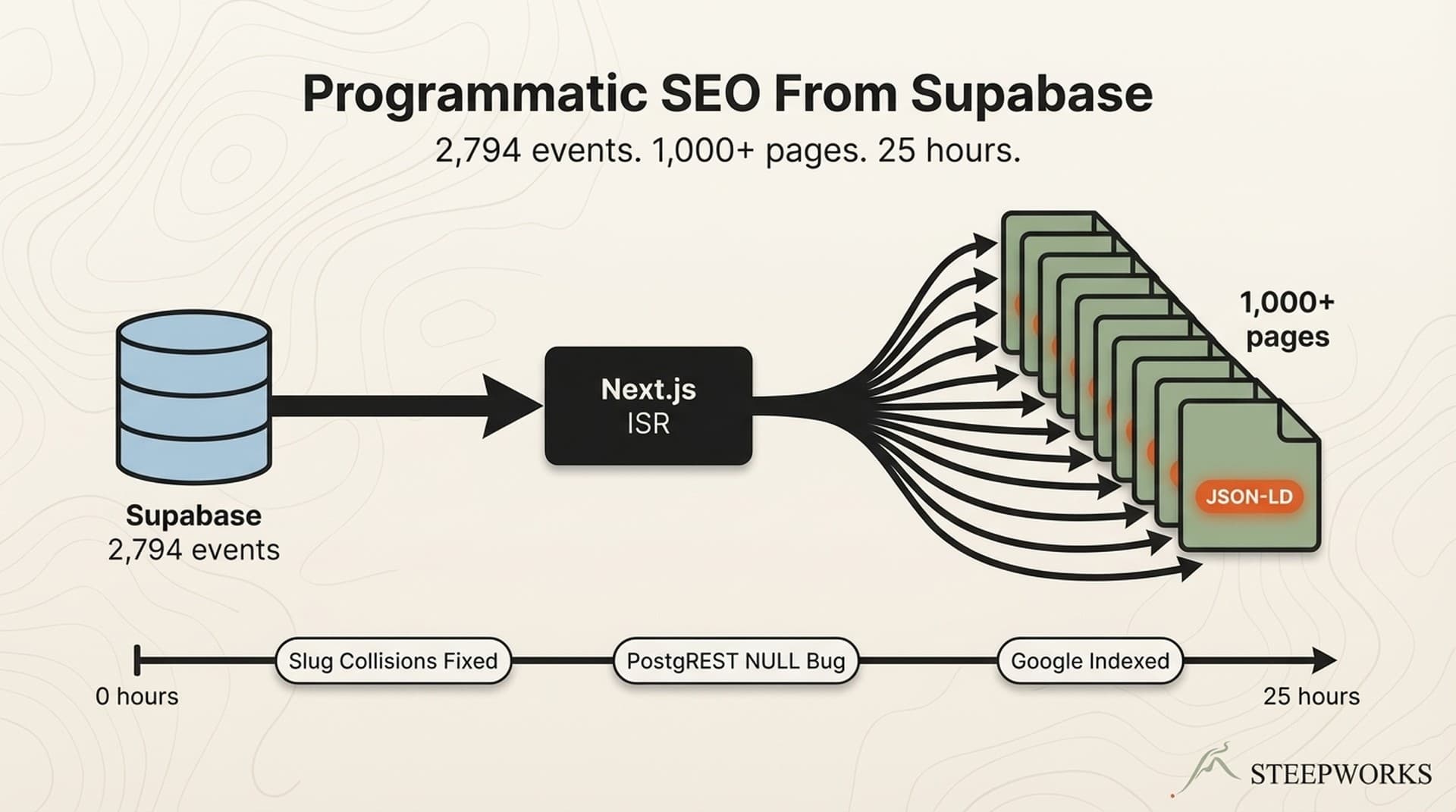
I configured the exact setup described in this article on two production sites running Next.js on Vercel. One has 10 pages. The other has 1,000+ -- built through programmatic SEO with Supabase as the data layer. Same 6 tags on both. The 1,000-page site needed analytics that worked identically on page 1 and page 1,000, which forced the kind of constraint-driven architecture that works better than a sprawling tag container.
The problem compounds on AI-built sites specifically. Rapid iteration means the site changes weekly. Client-side routing means traditional pageview triggers miss navigation events. Template-driven pages need consistent event architecture across hundreds of routes. Even if your site wasn't built with AI, the 6-tag config applies. The AI framing just explains why so many new sites launch with nothing beyond a GA4 property ID pasted into the head tag.
Why GTM Instead of Direct GA4
Before the configuration: the "can't I just paste the GA4 tag directly?" question deserves a straight answer.
Direct GA4 installation gives you pageviews and the 90% scroll event from Enhanced Measurement. That's it. For a 3-page portfolio site, that's probably enough.
GTM decouples your analytics configuration from your codebase. You change what you track without redeploying. On AI-built sites that iterate fast -- where the component structure shifts weekly and new pages appear in batches -- this separation matters. You don't want analytics changes gated behind code reviews and deployment pipelines.
GTM gives you trigger logic: fire events based on scroll thresholds, click attributes, form submissions, URL patterns. Direct GA4 can't do any of this without custom JavaScript injected into your codebase.
The trade-off is real. GTM adds a layer of complexity and a separate interface to manage. But for anything with content, CTAs, or conversion goals, the flexibility pays for itself in the first month. The official GA4 + GTM setup guide covers the basics. What follows is the opinionated layer on top.
The 6-Tag GTM Configuration
Your GTM container probably has 20+ tags. Here's why 17 of them aren't informing decisions.
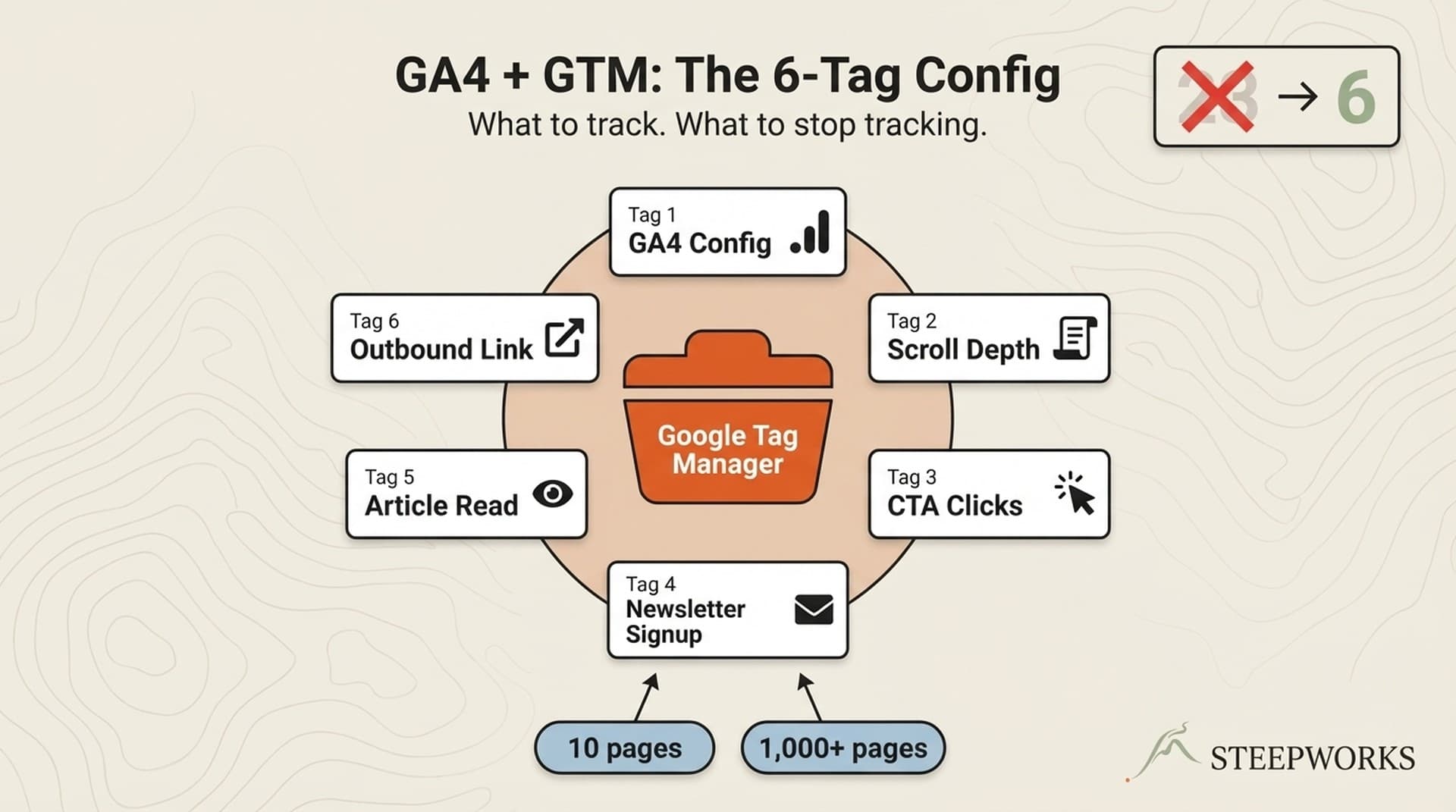
After 12 months of running a 23-tag container across two sites, I stripped it down to 6. Not because I wanted minimalism for its own sake -- because I audited which tags had actually influenced a decision in the past year, and only 6 had.
Tag 1: GA4 Configuration (The Foundation)
Google Tag with your Measurement ID. Trigger: Initialization - All Pages. This fires before any other tag -- an InfoTrust best practice that prevents race conditions where event tags fire before GA4 is ready to receive them.
Naming convention: GA4 - Config - [Property Name].
One critical step: disable Enhanced Measurement's built-in scroll event. We're replacing it with something more granular in Tag 2.
Tag 2: Scroll Depth (Content Consumption Signal)
GA4 Event tag. Event name: scroll_depth. Trigger: Scroll Depth, Vertical, Percentages at 25, 50, 75, 100. Parameter: scroll_threshold = {{Scroll Depth Threshold}}.
GA4's built-in scroll event fires once at 90%. That tells you someone hit the bottom. It doesn't tell you where people stop. The 25% thresholds reveal the drop-off curve -- where content loses readers. If 60% of visitors reach 50% scroll and only 15% reach 75%, you know exactly where your content needs work.
Analytics Mania's scroll tracking guide covers the mechanical setup. What matters more is what you do with the data: scroll depth is a content quality signal, not a vanity metric.
Tag 3: CTA Click (Action Intent Signal)
GA4 Event tag. Event name: cta_click. Trigger: Click - All Elements, filtered on Click Element matching CSS selector [data-cta]. Parameters: cta_name = {{Click Text}}, cta_location = {{Page Path}}.
The data-cta attribute pattern is the key design decision here. Add data-cta="hero-demo" to any button or link you want to track. No GTM changes needed when you add new CTAs -- just tag the element in your code.
Why data attributes over CSS classes? CSS classes change during redesigns. I've seen tracking break three times because a developer renamed a .btn-primary to .button-main. Data attributes are semantic. They survive styling refactors because they're explicitly about measurement, not presentation.
In the typed analytics layer I use in production, a pushEvent() function type-checks event parameters at compile time. The CTA click, newsletter signup, and outbound link events all flow through this single typed interface -- pricing_cta_click, product_cta_click, outbound_link_click. One pattern, multiple events, zero guesswork about what parameters each event expects.
Tag 4: Newsletter Signup (Direct Conversion)
GA4 Event tag. Event name: newsletter_signup. Trigger: Custom Event, fired from your signup form's success handler via dataLayer.push. Parameters: signup_location = page path, signup_source = inline/popup/footer.
This is a conversion event. Mark it as a Key Event in GA4 Admin after data starts flowing.
Why dataLayer.push from the success callback instead of a form submission trigger? Form submission triggers are unreliable with modern JavaScript frameworks. React re-renders can fire the trigger before the API call completes. The success callback is the only reliable signal that the signup actually went through.
In practice, my popup component fires analytics events at three points: impression (popup appears), close (user dismisses), and convert (signup succeeds). The conversion event only fires on the success handler -- not on form submit, not on button click. That distinction matters when you're calculating actual conversion rates instead of inflated ones.
Tag 5: Article Read (Composite Engagement Signal)
GA4 Event tag. Event name: article_read. Trigger: Custom trigger combining scroll depth >= 75% AND timer >= 30 seconds. Parameters: article_slug = {{Page Path}}, read_depth = {{Scroll Depth Threshold}}.
Why composite? Scroll alone doesn't prove reading -- someone can scroll to the bottom in 3 seconds. Time alone doesn't prove engagement -- a tab left open for 10 minutes counts as "time on page." The combination is a reasonable proxy for "this person actually consumed this content."
This metric replaces both "time on page" and raw "pageviews" as my content performance signal. When I compare articles, I rank by article_read count, not pageviews. The difference is stark: my highest-traffic article has 3x the pageviews of my best-performing article, but half the article_read events. One attracts clicks. The other attracts readers.
Tag 6: Outbound Link Click (Attention Exit Signal)
GA4 Event tag. Event name: outbound_click. Trigger: Click - Just Links, filtered where Click URL does not contain your domain. Parameters: outbound_url = {{Click URL}}, outbound_page = {{Page Path}}.
On content-driven sites, outbound clicks reveal where your audience's attention goes after your content. High outbound clicks on source citations means your content functions as a stepping stone -- people trust your curation enough to follow your references. High outbound clicks on competitor links means you're sending readers to alternatives, which is a content strategy gap worth closing.
Forward this section to your developer. These six tags function as a spec. Implementation takes under an hour. The tag names, trigger types, parameters, and naming conventions are all here. No interpretation needed.
What I Stopped Tracking After 12 Months
The "only 6 tags?" reaction is fair. Here's what I cut and why.
Duplicate pageview tags. Enhanced Measurement already captures page_view. A separate GTM pageview tag creates double-counted data in your reports. I ran both for three months before noticing the discrepancy. Removed the GTM tag. Numbers dropped 40% and became accurate.
Eleven button click tags. I had individual click-tracking tags for every button variant. Reviewed 12 months of data. Seven of those tags had never been referenced in a single report or decision. Not "rarely used" -- never referenced. Replaced all eleven with the single data-cta attribute pattern in Tag 3.
Session duration as a KPI. Long sessions can mean deep engagement or thorough confusion. Without scroll and engagement context, session duration is a vanity metric. The article_read composite event replaced it entirely -- same insight, less ambiguity.
Social share button clicks. Tracked shares across 10 articles for a full year. Total share clicks: 14. Newsletter signups from those same articles during the same period: 340+. The data made the decision obvious. Removed share tracking, redirected that attention to signup optimization.
Internal site search. Useful above roughly 500 pages with a real search feature. Below that threshold, you're tracking accidental clicks on a search icon. My 10-page site generated 6 search events in a year. Removed.
Video play/pause/complete. Three tags tracking 0.2% of sessions. On a text-first content site, video analytics is overhead. If video becomes a core format, the tags go back. Until then, they're noise.
Your CEO might still ask about pageviews. They still show up in your GA4 dashboard via Enhanced Measurement. You just don't need a separate GTM tag duplicating the data.
The Vercel Environment Variable Pattern
You need to decide: are your analytics IDs in your codebase or in your deployment config? This seems like a minor detail until the third time you need to swap a GTM container without touching code.
The pattern: NEXT_PUBLIC_GTM_ID as an environment variable in Vercel project settings. The NEXT_PUBLIC_ prefix exposes it to the browser -- required because GTM runs client-side. Set it in Vercel under Project > Settings > Environment Variables.
Set different values per environment. Production gets the real GTM container. Preview deployments get a debug container or nothing. Development gets nothing -- you don't want local coding sessions polluting production analytics data.
In my production root layout, the implementation is one conditional block. The code reads process.env.NEXT_PUBLIC_GTM_ID, trims whitespace, and injects the GTM script only if the value exists. If the environment variable is undefined -- which it is in development and preview environments where I haven't set it -- GTM doesn't load. The noscript iframe fallback is there for the rare no-JavaScript visitor.
Why this matters beyond hygiene:
- Measurement IDs stay out of git history. The ID comes from Vercel environment variables, not hardcoded values. No secrets in source control.
- Swap GTM containers without a code change. Update the environment variable in Vercel, redeploy, done. No PR, no code review, no build pipeline.
- Team transitions are clean. Every developer who leaves doesn't carry your analytics configuration in their local repo clone.
The vercel env pull .env.local command syncs production environment variables to your local machine for testing. No manual .env file management. The Vercel environment variables documentation covers the mechanics; the Next.js third-party libraries guide covers the component pattern.
GA4 + GTM is the analytics layer inside a broader AI-native GTM system. This article covers the configuration. For the full architecture -- 14 tools, 3 integrations, 1 system -- see AI GTM Tools: 14 Tools, 3 Integrations, 1 System.
Testing the Setup Without Breaking Production
Most analytics guides end at "publish the container." Here's what happens between publishing and trusting your data.
GTM Preview Mode confirms tags fire on the correct triggers. It shows you what GTM sends. GA4 DebugView confirms GA4 receives what GTM sends. You need both -- Preview Mode shows the send side, DebugView shows the receive side. A tag can fire correctly in GTM and still not appear in GA4 if the event name or parameters are misconfigured.
The 5-minute verification checklist:
- Enable Preview Mode in GTM
- Load your site in a new tab
- Scroll to 50% -- verify
scroll_depthfires withthreshold=50 - Click a CTA element -- verify
cta_clickfires with the correctcta_name - Check GA4 DebugView -- verify events appear within 30 seconds
- Publish the GTM container
- Wait 24 hours, then check GA4 Realtime for live data
The failure mode nobody warns you about: client-side routing. Next.js App Router navigates without full page reloads. If your GTM triggers rely on traditional page load events, they'll miss every route change after the initial load. The History Change trigger in GTM handles this -- enable it. Without it, a reader who lands on your homepage and clicks through to three articles registers one pageview instead of four.
Conditional loading for development: The environment variable pattern from the previous section handles this automatically. If NEXT_PUBLIC_GTM_ID isn't set, GTM doesn't load. No production data polluted by dev traffic. No separate NODE_ENV check needed.
What This Looks Like After 30 Days
The configuration takes about an hour. The value shows up a month later when you have enough data to act on.
Content performance ranked by actual readers, not pageviews. article_read events separate the articles people consume from the ones they bounce off. My content performance dashboard ranks by read count, not traffic. The ranking is different -- sometimes dramatically. The article that gets the most search traffic is rarely the one that gets the most readers.
CTA placement validated by scroll data. If 60% of readers drop off at 50% scroll and your primary CTA sits at 80%, you know why conversion is low. No A/B test needed. The scroll depth data makes the diagnosis obvious. Move the CTA above the drop-off point. Measure again.
Newsletter signup as the conversion signal. On content-driven B2B sites, newsletter signups are the cleanest intent signal available. Not demo requests -- too early for most content readers. Not social shares -- too noisy and too rare (14 shares vs. 340+ signups, remember). Newsletter signup means "I want more of this." That's actionable intent.
Outbound clicks reveal content strategy gaps. If readers consistently click outbound links to a specific topic you haven't covered in depth, that's your next article. The outbound click data from my first 30 days directly influenced three article topics.
The dashboard I actually check: Four cards. article_read count by post. cta_click by location. newsletter_signup trend over time. scroll_depth distribution by article. Everything else is available in GA4 but not on my default view. Four cards, checked weekly, informing real decisions about what to write, where to place CTAs, and which pages need work.
The Config Is the Easy Part
Six tags. About an hour to implement. The harder part is the discipline to not add tag 7, 8, and 9 when someone asks "can we also track X?"
Every tag you add is a tag you maintain, interpret, and explain. I learned this by running a 23-tag container for a year and discovering that 17 of those tags had never informed a decision. The constraint isn't a limitation -- it's a feature. Six tags that drive decisions beat twenty-three that generate reports nobody reads.
The configuration described here is one layer inside a broader AI-native GTM system. The analytics tell you what's working. The system determines what to do about it. Analytics without a system to act on the insights is just a more sophisticated way of flying blind.